
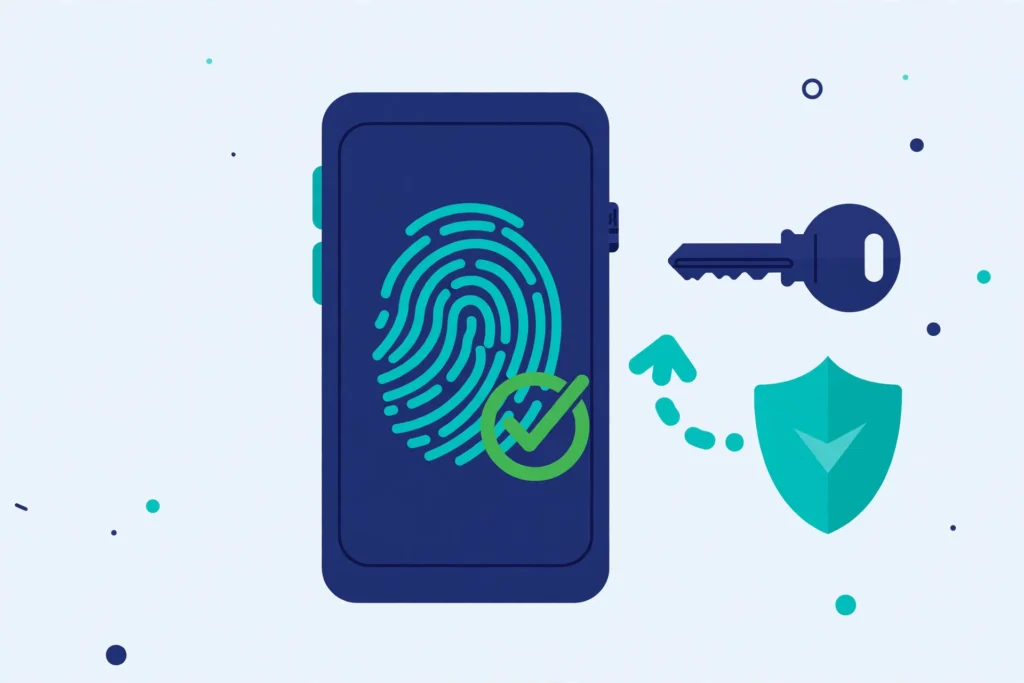

If you have signed in to Google, Apple, or Microsoft lately, you have probably seen a prompt asking if you want to create a passkey. This guide answers what is a passkey in plain language. It is the simplest sign in most people have ever used, and one of the safest. You do not choose it, remember it, or type it. You unlock your phone with your fingerprint, face, or PIN, and you are in.
What is a passkey, in plain language
A passkey is a replacement for your password, a digital credential that your device creates for you. It lives on your phone or computer, and you use it with the same fingerprint, face, or PIN you use to unlock that device.
A password is a secret you tell a website. If someone steals that list, or tricks you into typing it on a fake page, they can use it. With a passkey, you never type or send a secret. Your device proves it holds the right key, without showing it to anyone.
Passkeys use open standards called FIDO2 and WebAuthn, from the FIDO Alliance. The UK National Cyber Security Centre, the NCSC, said in April 2026 that it will begin recommending passkeys wherever a service supports them.
The FIDO Alliance said on World Passkey Day, 7 May 2026, that about 5 billion passkeys are now in active use. In its State of Passkeys 2026 report, it found that 90 percent of consumers had heard of passkeys, 75 percent had enabled one, and 49 percent use them regularly. Start with your email.
This guide explains what is a passkey in plain language, with no jargon and no step you cannot undo.
How a passkey works in plain language, the two keys
Every passkey is a pair of matching keys. The private key stays on your device, locked inside its secure hardware, and it never leaves. The public key goes to the website. On its own, it is useless to an attacker, like a lock with no key.
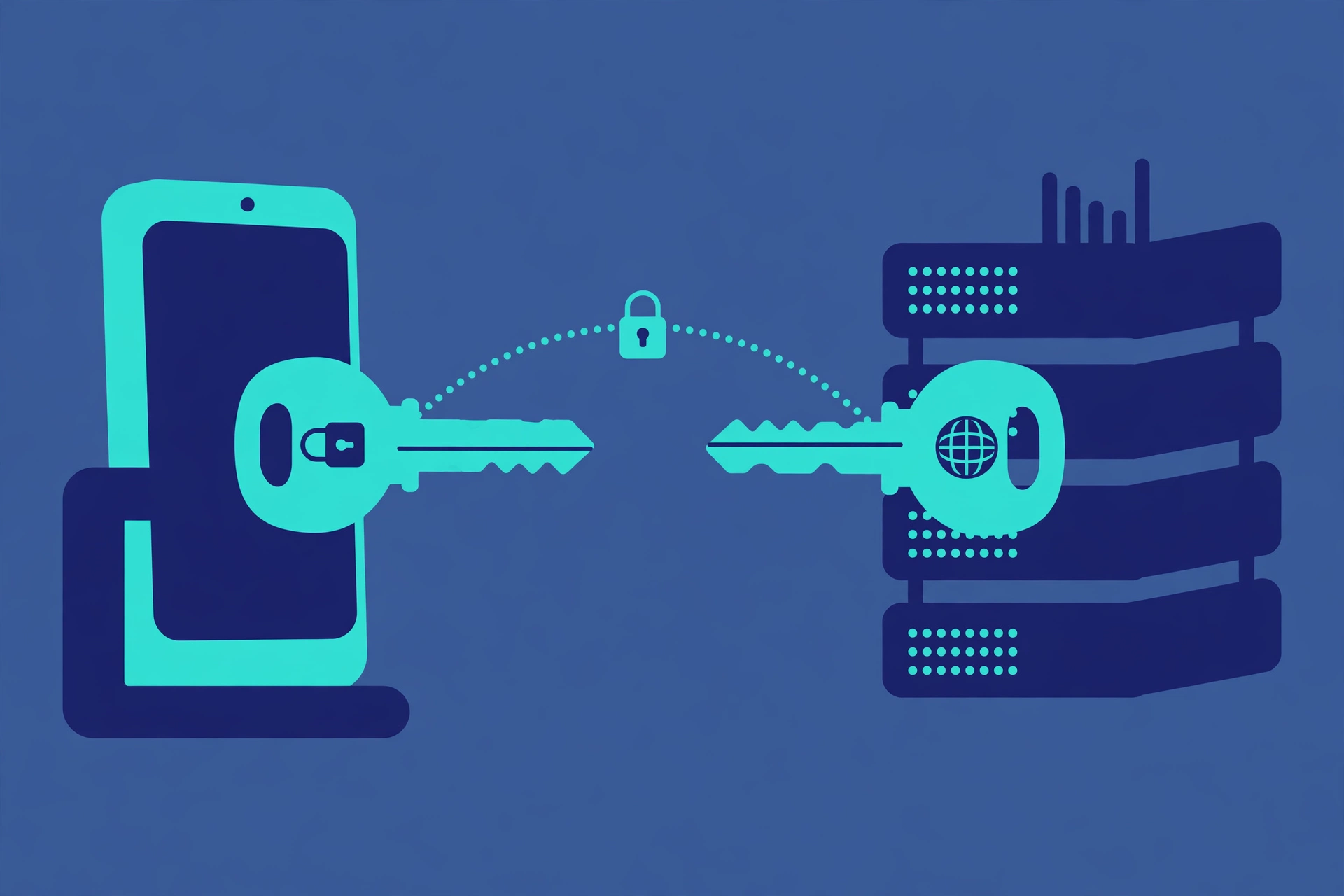
When you sign in, the website sends your device a one time challenge. Your device asks you to confirm it is you, then uses the private key to sign that challenge. The website checks the answer against the public key. If it matches, you are in.
Three details make this strong. First, there is no shared secret to steal. Second, your fingerprint or face never leaves your device. Third, a passkey only works on the real website it was made for, so a fake login page gets nothing usable.
That matters most for phishing. A password can be typed into a perfect fake page. A passkey cannot, because it is bound to the real address. Read our phishing guide here: https://techknowlogy.net/how-to-spot-a-phishing-email/
That is what is a passkey in plain language: two keys, one on your device and one on the website.
Why a passkey in plain language beats a password
An attacker can steal, guess, or reuse a password, so one leak can open many accounts. A passkey has nothing to type or reuse, and the website stores no secret for it. Every passkey is unique to one account on one site.
In short, what is a passkey in plain language? It is a sign in that proves who you are without a shared secret.
A password plus two factor authentication is better, but a fake page can ask for your password and your code together, and relay both to the real site in real time. Text codes are the weakest second factor, because SIM swap fraud can intercept them.
A passkey removes the password entirely. It combines something you have, the device that holds the private key, and something you are or know, your fingerprint, face, or PIN. The NCSC assessed in April 2026 that traditional multi factor methods are inherently phishable, while FIDO2 credentials, including passkeys, are as secure or more secure against common credential attacks.
Use a passkey where a site offers one. Where it does not, keep two factor authentication on. For accounts that still need passwords, see Best Password Manager 2026: https://techknowlogy.net/best-password-manager-2026/
If someone can unlock your phone, they can use the passkeys on it, so keep a screen lock on. A passkey also does not protect a session after you have signed in. Sign out on shared computers.
How to set up a passkey, in plain language, for Google, Apple, and Microsoft
Only create passkeys on devices you own, never on a shared computer.
Here is what is a passkey in plain language when you set one up, step by step for Google, Apple, and Microsoft.
Set up a passkey for Google
Go to myaccount.google.com/signinoptions/passkeys and sign in. Choose Create a passkey, then unlock your device. Google Password Manager saves your passkey, and it syncs to your other Android devices and to Chrome. A new
Google passkey can take up to 7 days before Google fully trusts it on new devices. Creating a passkey turns on Skip password when possible by default, but it does not remove your password or recovery options.
Set up a passkey for Apple
Passkeys live in iCloud Keychain, in the Passwords app on iOS 18 and later. Apple has no single create a passkey button. Instead, your iPhone, iPad, or Mac acts as a passkey store for any site that supports passkeys. First, turn on two factor authentication for your Apple Account, then turn on iCloud Keychain, in Settings, your name, iCloud, Passwords, Sync this iPhone. Then create a passkey at the site itself. Sign in with your password, open its account or security settings, choose its passkey option, tap Continue, and confirm with Face ID, Touch ID, or your passcode. The passkey syncs to your other Apple devices.
Set up a passkey for Microsoft
Passkeys rely on Windows Hello, so set up a PIN, face, or fingerprint first, in Settings, Accounts, Sign in options. You need Windows 11 for the latest features. Go to account.live.com/proofs/manage, and sign in. Choose Add a new way to sign in or verify, then select Face, Fingerprint, PIN, or Security Key. Select Continue to save the passkey, or Save another way to pick a different place. Where you save it matters. If you save a passkey to This Windows device, it stays on that PC. Microsoft Password Manager syncs a passkey saved there across Windows devices in Edge, with a personal account, not on phones, and not with work or school accounts. For a work or school account, use mysignins.microsoft.com, only if your organisation allows it. Trust the on screen prompts if the menu labels differ.
What happens to your passkey if you lose your phone
The answer depends on one thing, whether your passkey was synced, or whether it lived only on that one device.
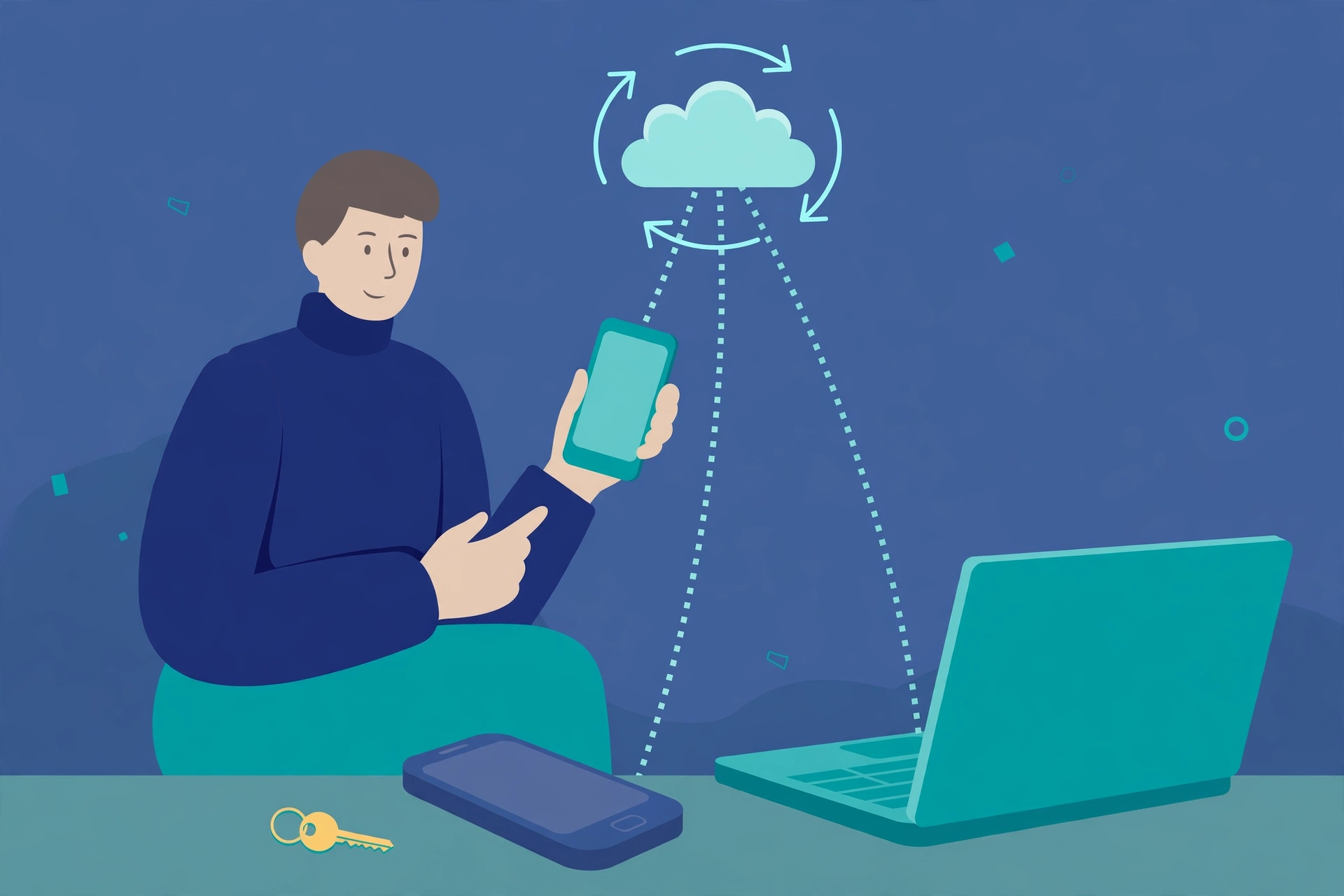
A cloud backed manager stores a synced passkey, iCloud Keychain, Google Password Manager, Microsoft Password Manager, or a third party manager like 1Password or Bitwarden. If you lose your phone, your other signed in devices already hold a copy of the passkey. You get a new phone, sign in to the same Apple ID or Google account, and the passkeys are there.
Only that device secure hardware, or a physical security key, holds a device bound passkey, with no cloud copy. If the device is gone, that passkey is gone with it. A public key cannot rebuild a lost private key.
How to get back in if you lose your phone
If you lose your phone, restore access first, and clean up later. Do not delete the lost passkey or sign out everywhere before you have a working way back in. Sign in from a device that still works, then use your backup route, a second passkey, a security key, a recovery code, or the site recovery flow. Recovery can take days, so start early. Once you are back in, re register a passkey on the new device, starting with email, then remove the lost device and the old passkey.
How to stop a lockout before it happens
Prevent a lockout before it happens. Keep your recovery phone and email up to date, save backup codes on paper, and create a second passkey on another device for your email at least.
One more trap. If you lose your only Apple device, Apple may ask for your old device passcode before it syncs iCloud Keychain, and you get 10 attempts at that step. Pick one manager for the devices you use every day, iCloud Keychain for Apple, Google Password Manager for Android and Chrome, or Bitwarden or Proton Pass if you use both.
What to do today with your passkey, in 5 steps
Start with email. It takes about 2 minutes per account.
First, turn on a screen lock, and update your recovery phone and email on Google, Apple, and Microsoft.
Second, create a passkey for your Google account, at myaccount.google.com/signinoptions/passkeys.
Third, turn on iCloud Keychain on your iPhone or Mac, if you use Apple devices, and create a passkey for a site the next time it offers one.
Fourth, set up Windows Hello on your Windows PC, if you use one, and create a passkey for your Microsoft account, saving it to Microsoft Password Manager, not only to that PC.
Fifth, add a second way back in. Create a second passkey on another device, save your backup codes on paper, and test it. Sign out and sign back in with the passkey, while you still have your password.
Do not delete your password on the same day you create a passkey. Keep your existing sign in methods until you have confirmed it works.
What is a passkey in plain language, the bottom line
So, what is a passkey in plain language? A passkey is not a password with a new name. Your device makes a pair of keys, keeps the private one, gives the public one to the website, and proves it holds the key by asking you for your fingerprint, face, or PIN. There is nothing to remember, nothing to type, and nothing secret for a fake site to steal.
That is why the NCSC now recommends passkeys wherever a service supports them. Start with email, add your bank and your main social accounts next, keep a backup route for each one, and let the passwords go, one account at a time.
Also read Best Password Manager 2026: https://techknowlogy.net/best-password-manager-2026/ and How to Spot a Phishing Email: https://techknowlogy.net/how-to-spot-a-phishing-email/


Pingback: How to Spot a Phishing Email in Gmail in 2026
Pingback: Best Password Manager 2026, Which One Is Actually Worth Paying For