
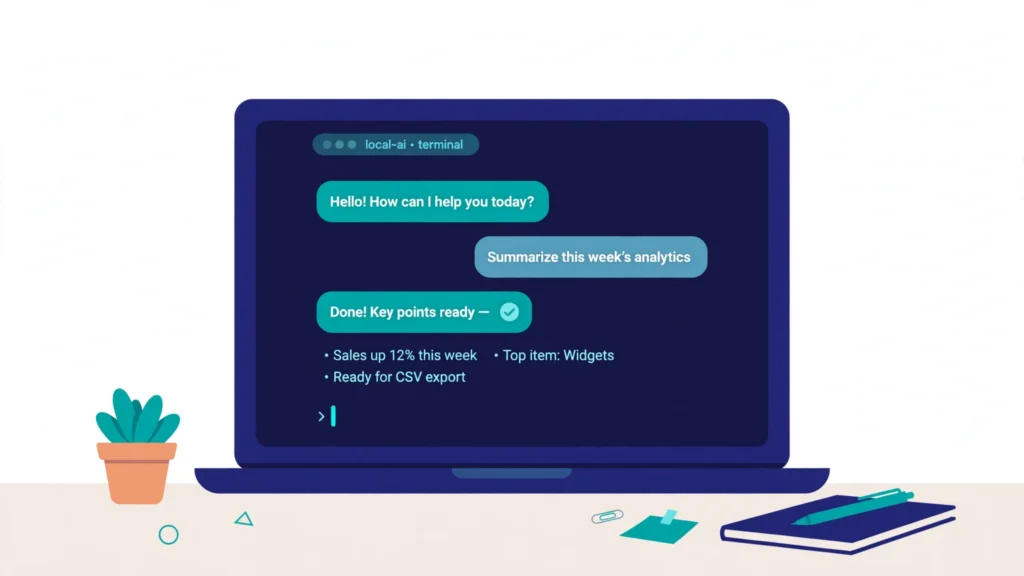

I like cloud AI. I use it every day for work, and Post 5 in this series, AI Tools at Work, is built around it. But there is one question cloud AI cannot answer well. What if I want to ask something I do not want to send to a server at all? That question led me to run a local LLM with Ollama.
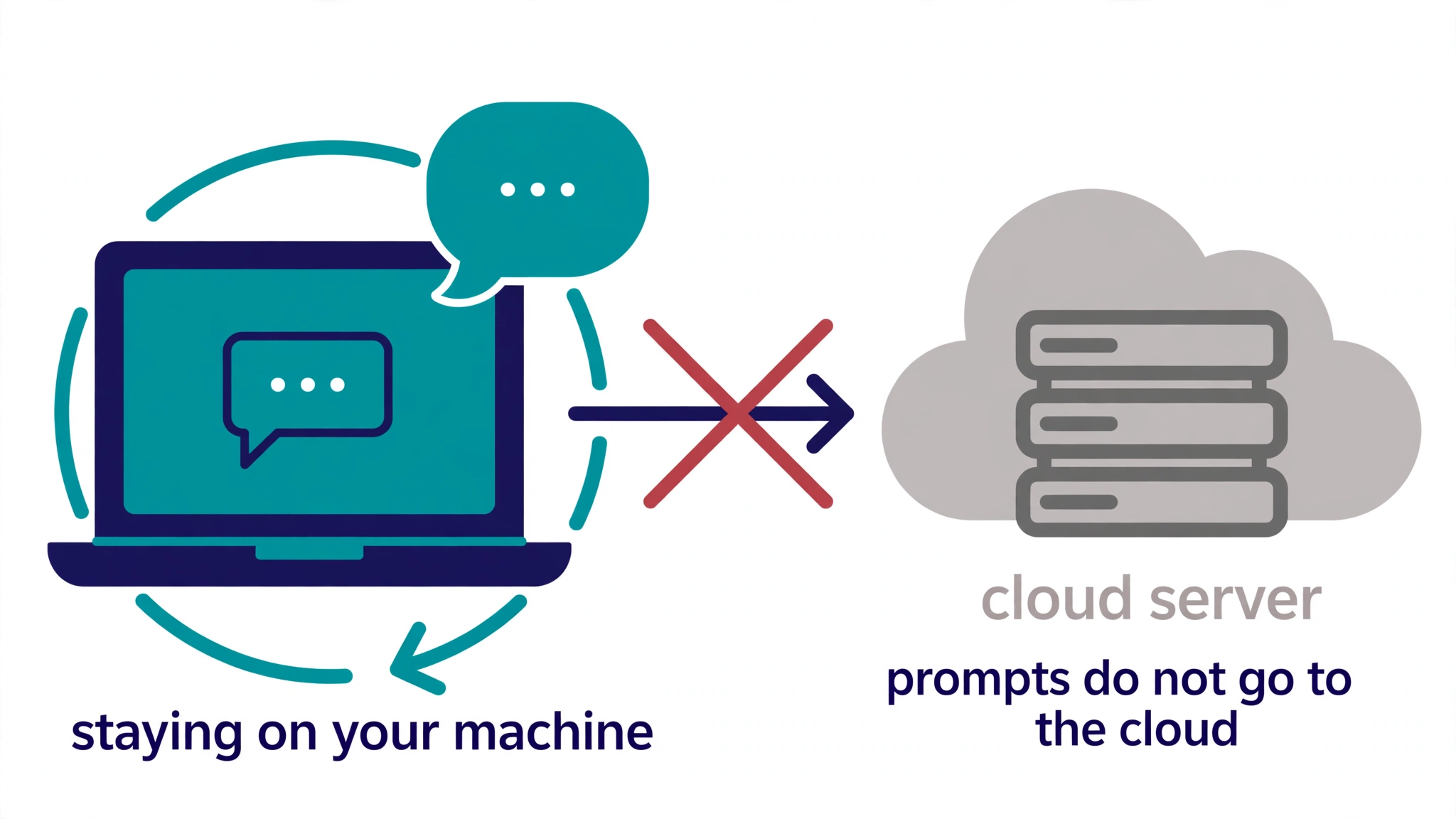
That is the whole point of a local LLM. You download a model, it runs on your own laptop, and your prompts never leave the room. You need no API key. There is no monthly bill. No per token meter running in the background. Once the model is downloaded, it even works without the internet.
This guide shows you how to run a local LLM with Ollama, the simple way. It is free, it is open source, and it takes about 10 minutes from install to your first chat. I will start with a small model that runs on almost any laptop, then show you the sensible step up when you have 16 GB of RAM.
What it means to run a local LLM with Ollama
A large language model is a very large file of numbers, called weights, plus a program that runs it. When you use ChatGPT or Gemini, that file lives in a data centre and your prompt travels to it. With a local LLM, the file lives on your hard drive and the program runs on your own processor or graphics card.
Ollama is the program that makes this easy. It handles the download, it picks the right build for your hardware, it starts a small local server, and it gives you a chat window in your terminal. You type ollama run llama3.2 and you are talking to a model on your own machine.
That one command is how you run a local LLM with Ollama for the first time.
Two honest limits before we start. A small local model is not as smart as Gemini 4 Hydrogen or Claude. It will be slower on hard maths, weaker on long documents, and it knows nothing after its training date unless you give it a search tool. And a model file is big. The small one in this guide is about 2 GB. The good everyday one is about 5 GB. Check your disk space first.
Step 1: Install Ollama
Ollama runs on Windows, macOS and Linux. You need Windows 10 22H2 or newer, or macOS Sonoma 14 or newer. On Linux, a 64 bit system with systemd is the simplest case, because the installer sets Ollama up as a service for you.
Mac users can download Ollama from ollama.com/download, drag it into Applications, and open it. It will offer to add the ollama command to your terminal. Say yes.
Download the Windows installer from the same page and run it. It installs into your home folder and does not need administrator rights. If you have an NVIDIA card, update the driver to 551.61 or newer first.
For Linux, run this one command in a terminal:
curl -fsSL https://ollama.com/install.sh | shWhen it finishes, check it worked:
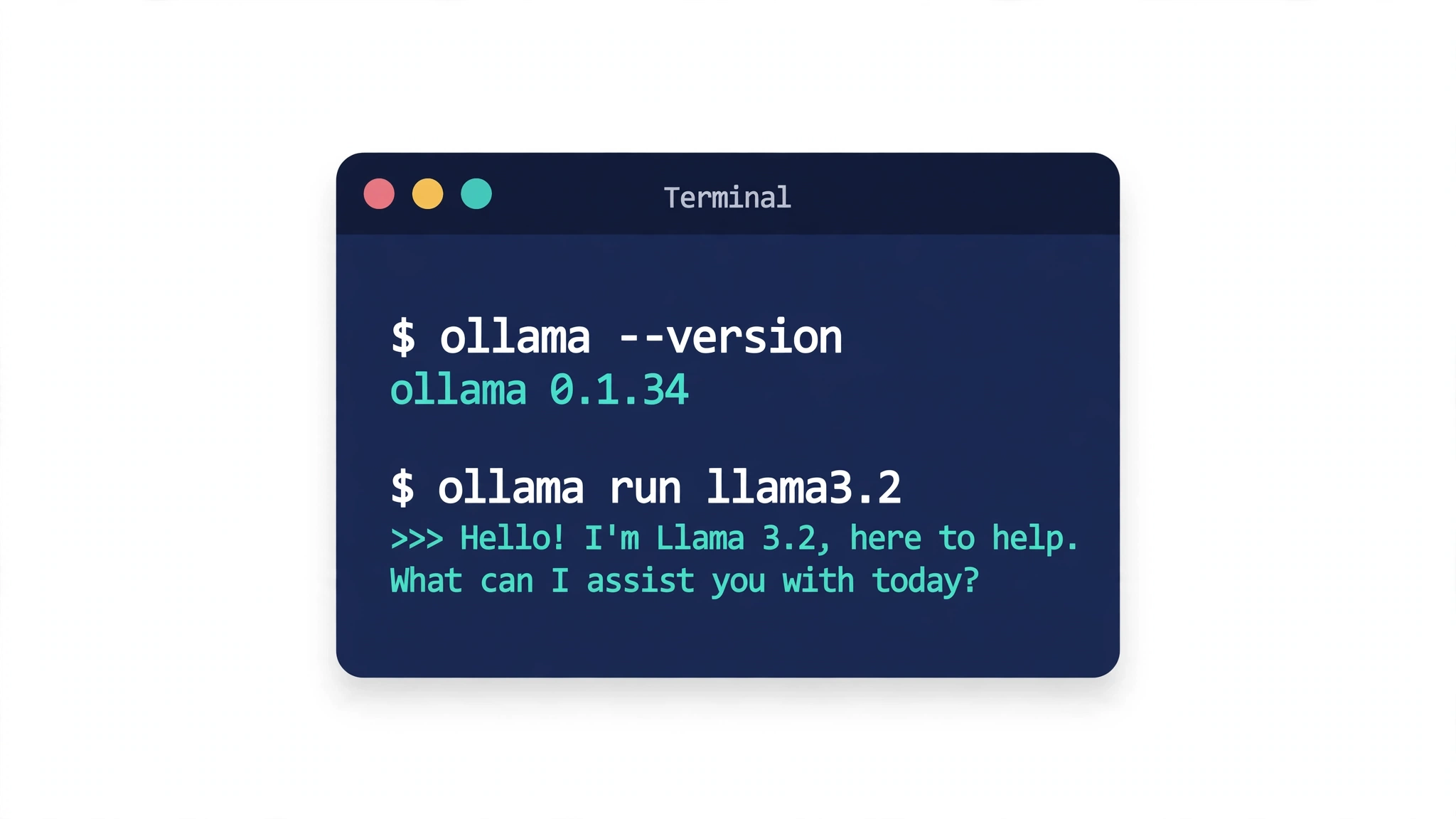
ollama --versionYou should see a version number. The current release when I checked this guide was 0.40.16, released on 9 Nov 2026, so do not worry if yours is a little newer. That is a good sign, not a problem.
Once that version number appears, you are ready to run a local LLM with Ollama.
Step 2: Run a local LLM with Ollama for the first time
Start small. Llama 3.2 in its 3B size is the beginner pick for a reason. The download is 2.02 GB, it runs on 8 GB of RAM, and it is fast enough to feel like a real assistant for drafts, summaries and simple questions.
ollama run llama3.2The first run downloads the model, which takes a few minutes depending on your internet. After that, Ollama opens a chat in your terminal. Type a question, press enter, and the answer appears, from your own machine.
That is all it takes to run a local LLM with Ollama and start chatting.
Try something practical first, not a trick question. Ask it to summarise a paragraph you paste in, or to turn rough notes into a tidy email. That is the job this size of model is good at.
When you are done, type /bye to leave the chat. The model stays downloaded, so the next run starts in seconds.
If even 2 GB feels heavy, the 1B version is 1.3 GB:
ollama run llama3.2:1bThe 1B version is noticeably weaker, but on an old laptop it is the difference between running and not running.
Step 3: Pick the right model for your machine
The rule that decides everything is memory. A model file plus its working memory has to fit in your RAM, or in your graphics card memory if you have one. If it does not fit, Ollama moves part of the model to slower memory and answers crawl.
Here is the short list I would use.
8 GB of RAM: stay with Llama 3.2 3B, about 2 GB, or Qwen 3.5 4B, about 3.3 to 4 GB. Quick drafts, summaries, simple chat.
16 GB of RAM: this is the sweet spot. Move up to Llama 3.1 8B, about 4.7 GB, for everyday work. It is noticeably stronger than the 3B on reasoning and writing. Qwen 2.5 Coder 7B, also about 4.7 GB, is the better pick if you mostly want coding help.
32 GB of RAM: now a 20B class model is realistic, for example a 27B model at about 17 to 20 GB, or a mixture of experts model such as gpt-oss 20B, which downloads at roughly 13 to 14 GB and runs inside 16 GB of memory because only part of it is active per token.
A rough guide from the Ollama community: a 4 bit model needs about 0.6 GB of memory per billion parameters, plus room for context and your operating system. So a 3B model needs about 2 to 4 GB in practice, and an 8B model needs about 8 GB free. Keep the model file under about half your RAM and you will be comfortable.
Whatever size you pick, the steps to run a local LLM with Ollama are the same.
One more warning about model names. Tags ending in -cloud run on Ollama servers, not on your PC. If privacy is the reason you are doing this, use plain local tags only, and check the tag before you pull it.
Step 4: Use it without the terminal
Not everyone wants to live in a terminal, and you do not have to. LM Studio is the no terminal alternative. It is a desktop app with a normal chat window. You download a model inside it, pick it from a list, and chat. It uses the same idea and the same kind of open models, and your prompts still stay local.
Ollama also has a web option. Open WebUI is a free chat interface that talks to Ollama on your machine and looks much more like ChatGPT in a browser. It is a nice second step once the terminal version works, but it is not needed to start.
Open WebUI does not change the setup, you still run a local LLM with Ollama underneath it.
If you want to build with it, Ollama runs a local API on port 11434, and it speaks the same shape as the OpenAI chat API. That means a small Python script can send it a prompt and get an answer back, with no API key and no cloud bill. That is a good first project for a reader who finished the ESP32 guides and wants a software project next.
The safety rule: keep port 11434 local
This is the one setting that matters. Ollama listens on localhost by default, which means only your own computer can reach it. That is the safe setting, and you should leave it that way.
Do not expose port 11434 to the internet, and do not forward it on your router so friends can use your model. The moment you do, anyone who finds the port can use your computer to run AI, and can see what it is asked. If a guide tells you to open the port for remote access, stop and think about whether you really need it. For a first setup on a home laptop, you do not.
When to use local, and when to use the cloud
Use a local model when the text is private, when you are offline, when you want to experiment without a bill, or when you are learning how models work. A diary entry, a work document you cannot upload, a coding experiment on a plane: local wins all of those.
Use the cloud when the task is hard. Long research, tricky reasoning, current news, image generation, or a document over 50 pages: Gemini, ChatGPT or Claude will do a better job, and Post 5 has the lean stack for that. I use both, and so should you. Local is not a replacement for cloud AI. It is the private corner of your AI setup.
What to try first
Run these three tests in your first session, and you will know within 10 minutes whether a local model fits your work.
First, paste in a long email and ask for a three line summary. Second, give it rough bullet points and ask for a tidy first draft. Third, ask it to explain a technical term in plain language, as if to a beginner. If the answers are good enough for those three, the model has earned a place on your machine.
Then try the step up. If you have 16 GB of RAM, pull the 8B model and run the same three tests again:
ollama run llama3.1:8bThe difference is the honest measure of whether the bigger download is worth it for you. On my reading of the guides, most people with 16 GB will keep the 8B as their daily model and keep the 3B for quick tasks.
The bottom line: run a local LLM with Ollama
You do not need a cloud account, a subscription, or a powerful gaming PC to run a local LLM with Ollama. You need Ollama, about 2 GB of disk, and 10 minutes. Start with Llama 3.2 3B, learn what it is good at, and only then decide whether a bigger model is worth the download.
Your prompts stay on your laptop. Your bill stays at zero. And the next time someone asks where your AI runs, you can point at your own desk.
What would you use a private local model for first? Tell me in the comments, and I will pick the most useful answers for a follow up guide on building a small tool on top of Ollama.



Pingback: How to Code Without Programming: 5 No-Code Secrets
Pingback: Best AI Tools for Work 2026: The Only 3 You Need
Pingback: Gemini 4 Hydrogen, What It Means for You