
Your encrypted chat can be private in transit and still be readable on your own phone. That is the problem Signal moved to fix on 20 November 2026. Signal blocks AI screen capture to close that gap.
Signal blocks AI screen capture with new screenshot and screen reading protections for its mobile apps. The aim is to stop AI agents built into phone operating systems from capturing Signal messages through the screen. The change covers iOS 27 and supported Android phones. It does not cover macOS in the same way, and Signal is open about that gap.
The announcement came in a blog post by Meredith Whittaker, president of the Signal Technology Foundation, the nonprofit that runs Signal. The post is titled Signal is Serious About Protecting Your Privacy. It calls the spread of operating system AI agents an existential threat to Signal and to its ability to keep its privacy promise. The question is no longer only who can intercept a message. It is also who can see it after it arrives.
What Signal announced
Signal blocks AI screen capture by restricting the latest AI agents built into mobile operating systems from capturing and storing Signal data. On iOS 27, it will prevent screenshots in the app. On Android, it will act when it detects an AI assistant trying to read the Signal screen, on Android versions where that detection is possible.
The protections are on by default on supported devices. People who want to take screenshots can turn the protection off in Signal settings. Signal warns that doing so can expose their own messages and the messages of their contacts to these AI agents, and can break its privacy guarantees. A screenshot setting in a chat app is not only a personal choice. It affects everyone in the conversation.
Why encryption alone is not enough
Signal uses end to end encryption. In simple terms, only the sender and the intended recipient can read a message while it travels between them. Signal itself cannot read the content. Security experts have tested that protection for more than a decade, and Signal points to that record in its announcement.
The screen creates a different problem. To read a message, your phone has to decrypt it and show it to you. Once the text is visible, an assistant that can read the screen does not need to break the encryption. It can capture the same text you see. In 2025, Signal used the same screenshot block on Windows 11 to keep chats out of Microsoft Recall, which captures the screen to build a searchable record.
How Signal blocks AI screen capture on iOS 27
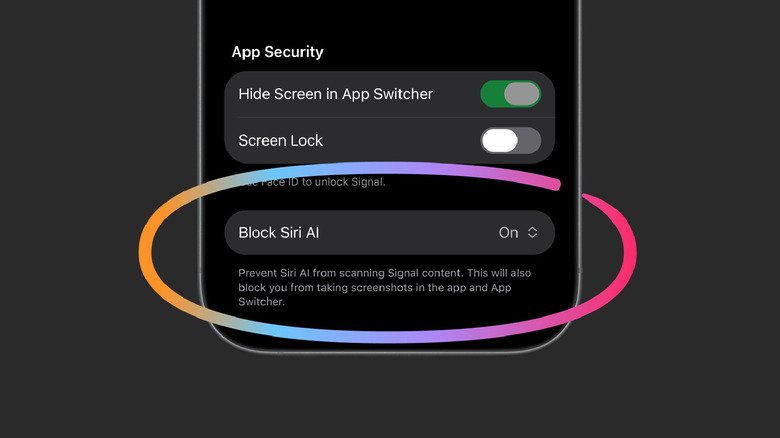
On iPhone, Signal has added a setting called Block Siri AI. It is on by default on iOS 27. The setting prevents Siri AI from scanning Signal content. It also blocks screenshots in the app and in the App Switcher, the view that shows recent apps.
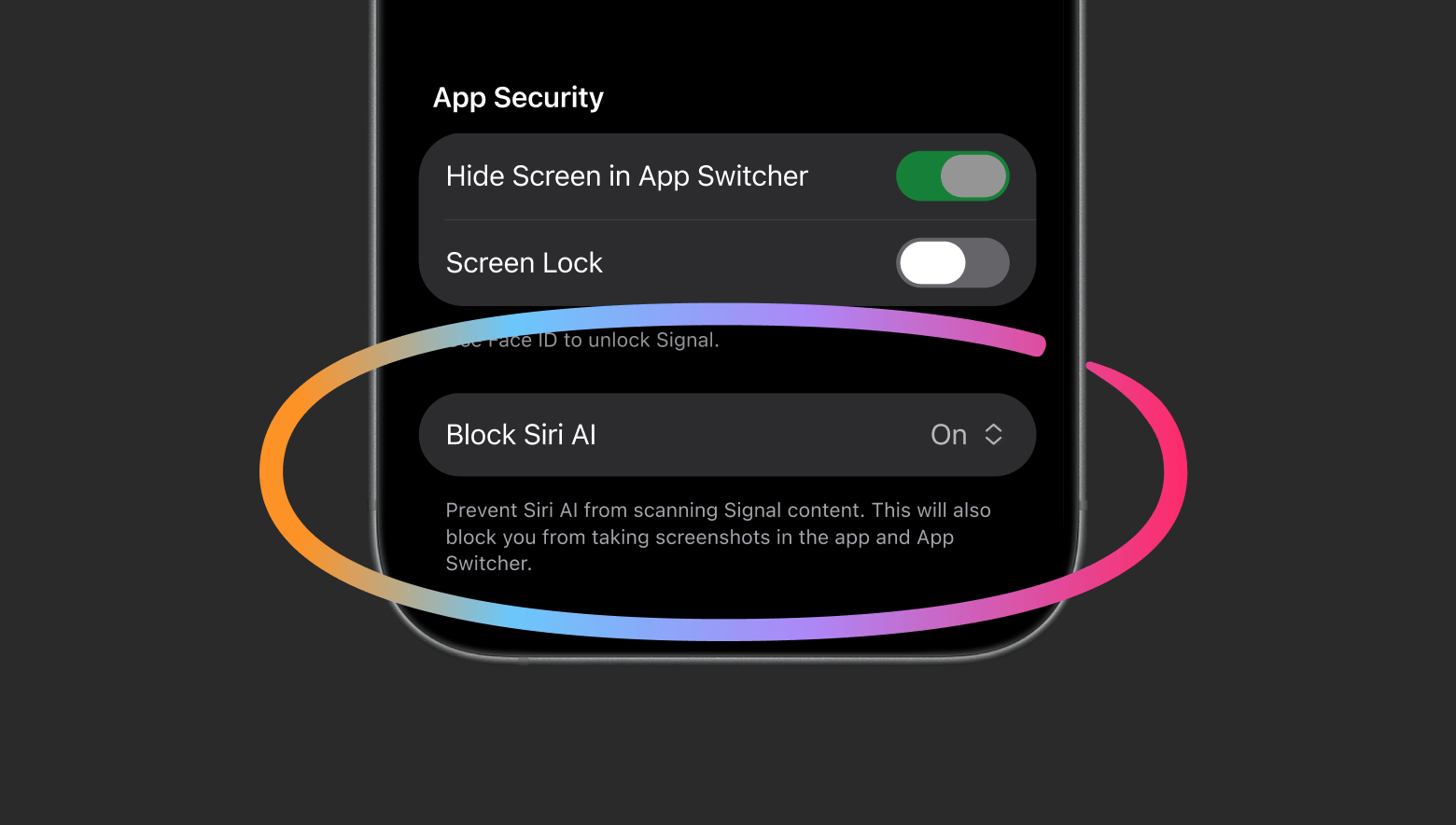
The wording in the setting, as shown in Signal’s own screenshot, is direct. It says the setting will prevent Siri AI from scanning Signal content, and will also block you from taking screenshots in the app and App Switcher. That trade off is deliberate. Signal does not have a separate switch that stops Siri AI while leaving ordinary screenshots untouched. To block the agent, it has to block the capture route that the agent uses. The named Apple feature behind this is Onscreen Awareness with Siri AI, which lets Siri answer questions about what is currently on the screen. On iOS 27.2, Apple also added an Excluded Apps list under Settings, then Siri, and the Electronic Frontier Foundation has welcomed that control as a clearer way to wall off an app from Siri AI.
How Signal blocks AI screen capture on Android
Android is harder for Signal, and the company says so. Phones from different makers run different versions of Android, and Signal cannot reliably detect every screenshot attempt on every device. A blanket screenshot block that works the same way everywhere is not available to it in the same form as on iOS.
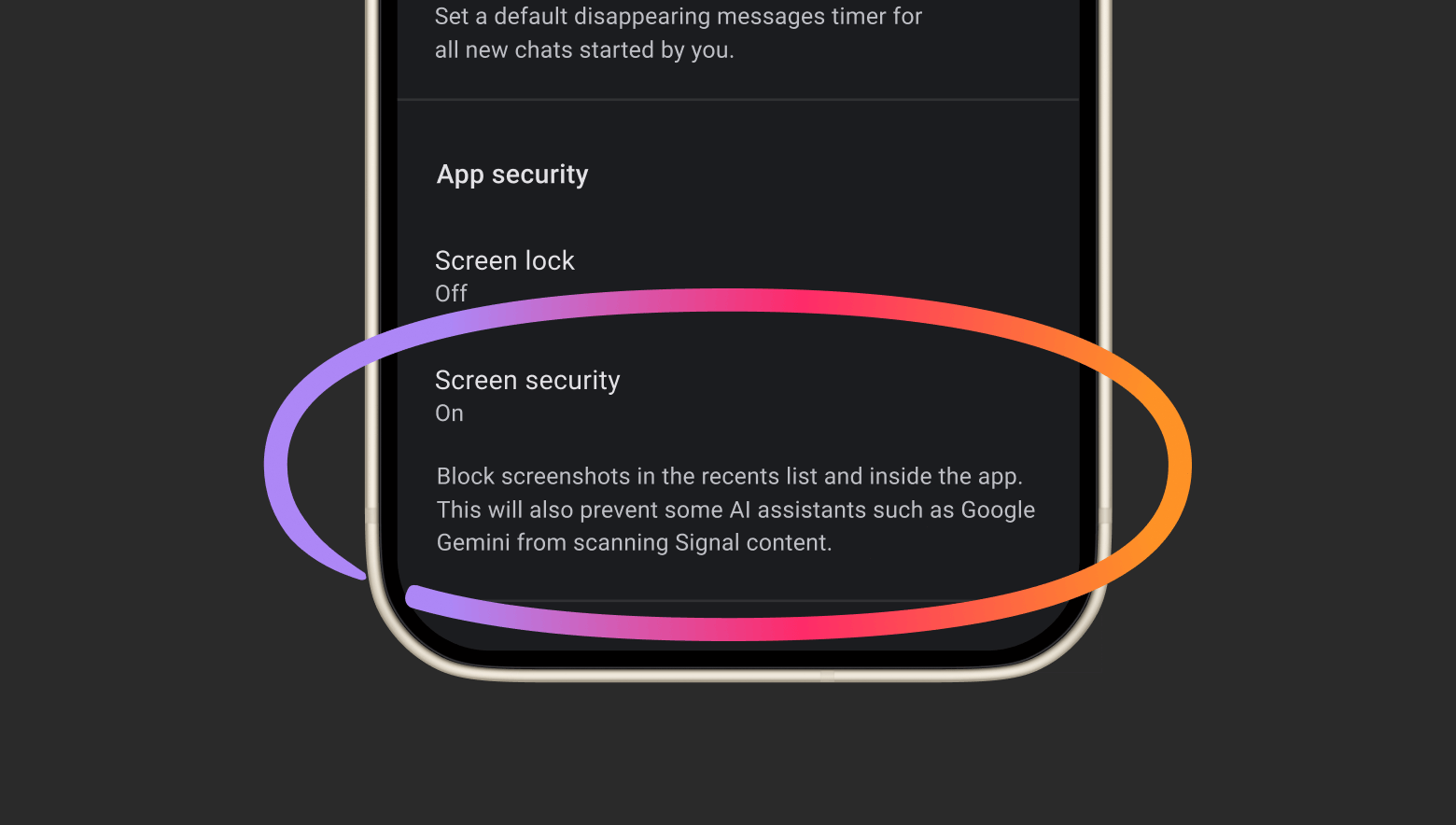
On Android, Signal blocks AI screen capture in a reactive way. It watches for an AI assistant trying to read the screen. When it detects that attempt, it automatically turns on its existing Screen security setting. That setting blocks screenshots inside the app and in the recent apps view, and Signal says it also stops some AI assistants, including Google Gemini, from scanning Signal content. The named Google feature behind this is Gemini Intelligence, which can use screen context to answer questions about what is visible.
What happens on macOS and Windows
Signal is clear that it cannot offer the same screenshot protection on macOS. The company says it currently lacks a reliable way to implement it there. That leaves Mac users without the in app block that iPhone and Android users now have.
For macOS 27, Signal recommends a manual step. Add Signal to the Excluded Apps list under System Settings, then Siri. That limits Siri’s proactive access to message content on the Mac. It is not a screenshot block, and Signal does not present it as one. It is the best available step inside the tools Apple provides.
Third party agents are part of the problem
Signal’s concern is not limited to Siri AI and Gemini. The company also names third party agents, including Meta’s Muse. These agents can ask for deep permissions during setup, including accessibility permissions and notification access. Those permissions help people with disabilities use their phones and computers more easily. Signal says AI agents now use them as a skeleton key that gives an AI agent broad access across apps.
Reuters reporting in the days before the announcement found that Meta’s Muse could read Signal messages in tests, through permissions granted during setup. On Android, the reporting described message text being pulled in through notification permissions. For Mac, it described accessibility and screenshot tools being used to capture chats, extract text from the images, and reproduce the messages inside the Muse app. The same tests on iPhone were reported as blocked. Meta has said that Muse only accesses apps through explicit permissions, and has described some of the reported cases as isolated incidents.
What Signal is asking Apple, Google and Microsoft to do
The second half of Signal’s announcement is a request, not a product update. Signal blocks AI screen capture in its own app, and it is calling on Apple, Google and Microsoft to provide simple technical tools and accurate documentation that give developers ways to prevent AI agents from accessing sensitive app data.
Signal asks for two specific remedies. First, developers should have an easy and well documented way to opt their app out of AI data access and processing, including screen reading, filesystem access, notifications, application programming interfaces, and other operating system frameworks, all without undermining the core utility of an app. Second, operating system companies should create better documentation and technical specifications around how these AI agents function, particularly regarding data access and processing.
What to do now that Signal blocks AI screen capture
You do not need to do anything complicated to get the new protection on a supported phone. Update Signal, then check that the setting is on. The steps below are the practical core of this post.
Signal blocks AI screen capture checklist
- Update Signal to the latest version. Coverage citing Signal support puts the iPhone change at Signal 8.37 or later on iOS 27 or later, and the Android change at Signal 8.35.1 or later.
- On iPhone, open Signal, go to Settings, then Privacy, and leave Block Siri AI on. If you try a screenshot and see the prevention message, that is the protection working, not a bug.
- On Android, open Signal, go to Settings, then Privacy, then App security, and turn Screen security on if it is not already on. Do not wait for an assistant to trigger it.
- On iPhone running iOS 27.2, also open Settings, then Siri, then Excluded Apps, and add Signal.
- On Mac running macOS 27, open System Settings, then Siri, then Excluded Apps, and add Signal. Signal cannot block screenshots on macOS, so this manual step is the main protection available there.
- Think twice before turning the protection off to take a screenshot. If you need a record, consider copying the specific text you need, with the other person’s agreement, rather than opening the whole chat to screen capture. If you do turn the block off, turn it back on right away.
- Review AI agent permissions on your phone and computer. Check which assistants have accessibility access, notification access, or screen access. Remove access you do not need, especially for agents that can act across apps.
- Talk to the people you chat with. Your setting does not protect a message once it appears on their phone. If they have turned their protection off, an assistant on their device can still read it.
What this change does not fix
Signal is upfront that screenshot blocking is only a partial solution. Readers should take that seriously, and should not treat the new setting as a guarantee that no AI system can ever see a Signal message.
First, blocking screenshots does not stop an agent from reaching content already stored on the device through the filesystem. If a file, an export, a backup, or a cached copy exists outside Signal’s protected view, an agent with filesystem access may still be able to read it.
Second, it does not stop an agent from reading notifications. A message preview in a notification can carry the same text as the chat itself. If you use Signal for sensitive conversations, consider turning off message previews in notifications, or at least turning off previews on the lock screen.
Third, it does not protect a message on the other person’s device. If the person you are talking to has turned the protection off, or is using a device where the protection does not work, an assistant on that device can read the message there. Privacy in a chat is shared. Your settings help, but they cannot override someone else’s phone. A partial defence that closes the most direct route is still worth having.
Why Signal blocks AI screen capture matters beyond Signal
Signal calls itself the canary in the coal mine. The phrase means that a problem that hits Signal first will hit other apps later. If an operating system assistant can read a Signal chat, it can also read a banking app, a health app, a work email app, or a notes app that holds private information. The same screen reading capability that makes an assistant helpful also makes it a risk to any app that displays sensitive data.
That is why the request for a standard opt out matters more than the screenshot toggle itself. A single app can block screenshots. Only the platform owner can provide a clean, documented way for any app to say that its content should not be used for AI processing. Without that, every developer has to invent its own workaround, and users have to learn a different setting for every app.
Signal blocks AI screen capture on supported phones. Update Signal, leave the protection on, and check the permissions you have granted to AI agents. That is the practical takeaway from this announcement. The longer question, whether Apple, Google and Microsoft will give developers a proper opt out from AI data access, is still open. Signal is asking for it in public, and it is cautiously optimistic that the conversation is moving. Until that standard exists, a screenshot block is a useful defence, and a reminder that encryption protects a message in transit, but the screen is where privacy can still leak.