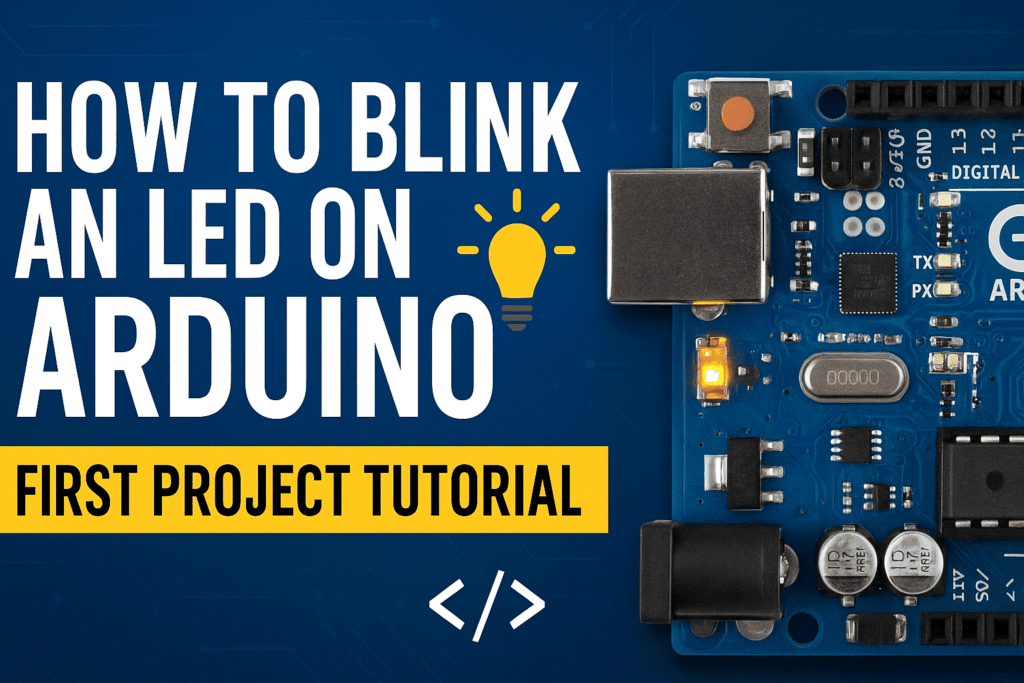

Welcome to the exciting world of ESP32! This ESP32 LED blink tutorial is designed for complete beginners who want to learn embedded programming. In this beginner-friendly ESP32 LED blink tutorial, you’ll learn how to create your very first ESP32 project: making an LED blink. This is the “Hello World” of electronics and embedded programming, and it’s the perfect starting point for your ESP32 journey.

What You’ll Need
Before we begin, make sure you have the following:
- ESP32 Board (ESP32 DevKit, NodeMCU-32S, or any ESP32 development board)
- USB Cable (usually Micro-USB or USB-C depending on your board)
- Computer (Windows, Mac, or Linux)
- Internet Connection (for downloading the software and ESP32 board support)
Step 1: Download and Install the Arduino IDE
The Arduino IDE (Integrated Development Environment) is the software you’ll use to write and upload code to your ESP32 board.
Installation Process:
- Visit the Official Arduino Website
- Open your web browser and go to:
https://www.arduino.cc/en/software
- Open your web browser and go to:
- Choose Your Operating System
- Select the appropriate download for your computer (Windows, macOS, or Linux)
- Click on the download link
- Install the Software
- Windows: Run the downloaded
.exefile and follow the installation wizard. Accept the license agreement and use the default installation settings. - macOS: Open the
.dmgfile and drag the Arduino app to your Applications folder. - Linux: Extract the downloaded file and run the installation script according to the instructions provided.
- Windows: Run the downloaded
- Launch the Arduino IDE
- Open the Arduino IDE application from your programs/applications folder
- You should see a new blank sketch window with
setup()andloop()functions
Step 2: Install ESP32 Board Support
Before you can program your ESP32, you need to add ESP32 board support to the Arduino IDE.
Adding ESP32 Board Manager URL:
- Open Preferences
- Go to
File > Preferences(Windows/Linux) orArduino > Preferences(Mac)
- Go to
- Add ESP32 Board Manager URL
- Find the “Additional Boards Manager URLs” field
- Paste this URL:
https://raw.githubusercontent.com/espressif/arduino-esp32/gh-pages/package_esp32_index.json - If there are already URLs in this field, click the button next to it and add the ESP32 URL on a new line
- Click “OK” to save and close the Preferences window.
- Open Boards Manager
- Go to
Tools > Board > Boards Manager... - In the search box, type “ESP32”
- Go to
- Install ESP32 Support
- Look for “esp32 by Espressif Systems“
- Click “Install” (this may take a few minutes as it downloads the necessary files)
- Wait for the installation to complete
- Click “Close” when done
Step 3: Connect Your ESP32 Board to Your Computer
Now it’s time to physically connect your ESP32 to your computer.
Connection Steps:
- Take Your USB Cable
- Use the USB cable that came with your ESP32 or a compatible one
- Connect to ESP32
- Plug the appropriate end of the USB cable into your ESP32 board
- The connector is usually Micro-USB or USB-C depending on your board model
- Connect to Computer
- Plug the other end (USB-A) into an available USB port on your computer
- Look for Power Indicator
- Once connected, you should see a power LED light up on your ESP32 board (usually blue or red)
- This confirms your board is receiving power
Step 4: Configure the Arduino IDE for ESP32
Before uploading code, you need to tell the Arduino IDE which board you’re using and which port it’s connected to.
Board Selection:
- Open the Tools Menu
- Click on
Toolsin the top menu bar
- Click on
- Select Your Board Type
- Navigate to
Tools > Board > ESP32 Arduino - Select your specific board model (e.g., “ESP32 Dev Module”, “NodeMCU-32S”, or “ESP32-WROOM-DA Module”)
- If unsure, “ESP32 Dev Module” works for most generic ESP32 boards
- Navigate to
Port Selection:
- Identify the Correct Port
- Go to
Tools > Port - Look for a port with your ESP32 board name or USB serial identifier
- Windows: It will appear as
COM3,COM4, etc. (e.g., “COM3”) - macOS: It will appear as
/dev/cu.usbserial...or/dev/cu.SLAB_USBtoUART - Linux: It will appear as
/dev/ttyUSB0or/dev/ttyACM0
- Go to
- Select the Port
- Click on the appropriate port to select it
Step 5: Understand the Built-in LED
Most ESP32 development boards come with a built-in LED that’s perfect for your first project.
Key Information:
- Location: The built-in LED location varies by board manufacturer
- Label: It’s often labeled with “LED” or near a specific GPIO pin
- Pin Number: Common built-in LED pins are GPIO2, GPIO5, or GPIO16 (varies by board)
- Most Common: GPIO2 is the most common built-in LED pin on ESP32 boards
- Convenience: You don’t need to wire anything – it’s ready to use!
Important Note About Pin Numbers:
Unlike traditional boards where pin 13 is standard, ESP32 boards use different GPIO pins for the built-in LED. We’ll use GPIO2 in this tutorial, which works for most ESP32 DevKit boards. If your LED doesn’t blink, try GPIO5 or check your board’s documentation.
Step 6: Write Your First Sketch (Code)
In programming terminology, a program is called a “sketch.” Let’s write the LED blink sketch for ESP32.
Understanding the Code Structure:
Every sketch has two main functions:
setup(): Runs once when the board starts up – used for initializationloop(): Runs repeatedly forever – contains your main program logic
The Blink Code:
Delete any existing code in your Arduino IDE and type or copy the following:
// Define the LED pin - GPIO2 is common for built-in LED on ESP32
#define LED_PIN 2

void setup() {
  // Initialize the LED pin as an output
  pinMode(LED_PIN, OUTPUT);
}

void loop() {
  digitalWrite(LED_PIN, HIGH);   // Turn the LED on
  delay(1000);                   // Wait for 1000 milliseconds (1 second)
  digitalWrite(LED_PIN, LOW);    // Turn the LED off
  delay(1000);                   // Wait for 1000 milliseconds (1 second)
}
Code Explanation:
#define LED_PIN 2
- This creates a constant named LED_PIN with value 2
- Using a constant makes it easy to change the pin number if needed
- GPIO2 is the most common built-in LED pin on ESP32 boards
pinMode(LED_PIN, OUTPUT);
- This line configures the LED pin as an output pin
- It must be called in
setup()before you can control the pin LED_PINis our defined pin (GPIO2),OUTPUTmeans we want to send signals out
digitalWrite(LED_PIN, HIGH);
- Sends a HIGH signal (3.3V on ESP32) to the LED pin
- This turns the LED on
HIGHmeans “on” or “true”
delay(1000);
- Pauses the program for 1000 milliseconds (1 second)
- The number in parentheses is in milliseconds (1000 ms = 1 second)
- During this time, nothing changes – the LED stays in its current state
digitalWrite(LED_PIN, LOW);
- Sends a LOW signal (0V) to the LED pin
- This turns the LED off
LOWmeans “off” or “false”
The Loop Cycle:
- LED turns ON → waits 1 second → LED turns OFF → waits 1 second → repeats forever
Step 7: Upload Your Sketch to the ESP32
Now comes the exciting part – uploading your code to the ESP32!
Upload Process:
- Verify Your Code First (Optional but Recommended)
- Click the checkmark icon (✓) in the top-left corner
- This compiles your code and checks for errors
- Look at the bottom of the IDE window for success message: “Done compiling”
- If there are errors, they’ll appear in orange/red text – fix them before proceeding
- Upload the Code
- Click the right arrow icon (→) next to the checkmark
- This compiles and uploads your sketch to the ESP32
- You’ll see “Uploading…” at the bottom of the window
- Watch the Progress
- During upload, you may see messages like “Connecting…” or “Writing at 0x…”
- Some ESP32 boards require you to hold the “BOOT” button during upload
- If upload stalls at “Connecting…”, try holding the BOOT button
- Wait for the message “Done uploading” to appear
- Troubleshooting Upload Issues
- “Failed to connect”: Hold the BOOT button on the ESP32 and try again
- “Error opening serial port”: Wrong port selected or board not connected
- “Board not found”: Check your USB cable and connection (some cables are power-only)
- “Timed out waiting for packet header”: Press and hold BOOT button during upload
- Driver Issues on Windows: You may need to install CP2102 or CH340 USB drivers
Step 8: Watch Your ESP32 Come to Life!
Congratulations! Your ESP32 is now running your first program.
What You Should See:
- The built-in LED should be blinking
- ON for 1 second → OFF for 1 second → repeating continuously
- This will continue as long as the ESP32 has power
If the LED Doesn’t Blink:
Your ESP32’s built-in LED might be on a different pin. Try these alternatives:
Option 1: Change LED_PIN to 5
#define LED_PIN 5Option 2: Change LED_PIN to 16
#define LED_PIN 16Option 3: Check your board’s documentation for the correct LED pin
The LED Won’t Stop Until:
- You unplug the ESP32 from power
- You upload a different sketch
- You press the reset button on the ESP32 (it will start the program again from the beginning)
Experiment and Learn More
Now that you have the basic blink working, try these experiments to deepen your understanding:
Experiment 1: Change the Blink Speed
Fast Blink: Change both delay(1000) values to delay(100) for rapid blinking.
digitalWrite(LED_PIN, HIGH);
delay(100);  // 0.1 seconds on
digitalWrite(LED_PIN, LOW);
delay(100);  // 0.1 seconds off
Experiment 2: Create Different Patterns
Morse Code SOS: Three short, three long, three short
// S - three short
digitalWrite(LED_PIN, HIGH); delay(200);
digitalWrite(LED_PIN, LOW); delay(200);
digitalWrite(LED_PIN, HIGH); delay(200);
digitalWrite(LED_PIN, LOW); delay(200);
digitalWrite(LED_PIN, HIGH); delay(200);
digitalWrite(LED_PIN, LOW); delay(500);

// O - three long
digitalWrite(LED_PIN, HIGH); delay(600);
digitalWrite(LED_PIN, LOW); delay(200);
digitalWrite(LED_PIN, HIGH); delay(600);
digitalWrite(LED_PIN, LOW); delay(200);
digitalWrite(LED_PIN, HIGH); delay(600);
digitalWrite(LED_PIN, LOW); delay(500);

// S - three short
digitalWrite(LED_PIN, HIGH); delay(200);
digitalWrite(LED_PIN, LOW); delay(200);
digitalWrite(LED_PIN, HIGH); delay(200);
digitalWrite(LED_PIN, LOW); delay(200);
digitalWrite(LED_PIN, HIGH); delay(200);
digitalWrite(LED_PIN, LOW); delay(1000);
Experiment 3: Asymmetric Blinking
Make the LED stay on longer than it stays off:
digitalWrite(LED_PIN, HIGH);
delay(2000);  // On for 2 seconds
digitalWrite(LED_PIN, LOW);
delay(500);   // Off for 0.5 seconds
Experiment 4: Use Multiple GPIO Pins
ESP32 has many GPIO pins. Try connecting external LEDs:
#define LED1 2
#define LED2 4
#define LED3 5

void setup() {
  pinMode(LED1, OUTPUT);
  pinMode(LED2, OUTPUT);
  pinMode(LED3, OUTPUT);
}

void loop() {
  digitalWrite(LED1, HIGH); delay(300);
  digitalWrite(LED1, LOW);
  digitalWrite(LED2, HIGH); delay(300);
  digitalWrite(LED2, LOW);
  digitalWrite(LED3, HIGH); delay(300);
  digitalWrite(LED3, LOW);
}
Common Troubleshooting Tips
LED Not Blinking?
- Wrong LED Pin: Try LED_PIN values of 2, 5, or 16
- Check Your Connections: Ensure USB cable is properly connected (use a data cable, not power-only)
- Verify Upload Success: Look for “Done uploading” message
- Check Port Selection: Make sure you selected the correct COM port
- Try Different USB Port: Some ports provide more reliable connections
- Install USB Drivers: Windows may need CP2102 or CH340 drivers
Compilation Errors?
- Missing Semicolons: Every statement must end with
; - Case Sensitivity:
digitalWriteis not the same asDigitalWrite - Parentheses: Make sure all opening parentheses
(have closing ones) - Curly Braces: Every opening
{needs a closing}
Upload Errors?
- “Failed to connect”: Hold the BOOT button during upload
- Wrong Board Selected: Double-check
Tools > Board > ESP32 Arduino - Wrong Port: Verify the correct port in
Tools > Port - Board Not Recognized: Try unplugging and replugging the USB cable
- Driver Issues: Install CH340 or CP2102 USB-to-Serial drivers
- Upload Speed Too Fast: Try reducing upload speed in
Tools > Upload Speedto 115200
ESP32-Specific Issues:
- “Brownout detector”: Power supply issue – try a different USB port or powered hub
- “Flash Failed”: Hold BOOT button while uploading
- Board constantly rebooting: Code may have an issue, or power supply insufficient
Understanding What You’ve Learned
This simple project has taught you fundamental concepts:
- Digital Output: Controlling GPIO pins to send HIGH or LOW signals
- Program Structure: Using
setup()andloop()functions - Timing: Using
delay()to control program execution - Pin Configuration: Setting pins as inputs or outputs with
pinMode() - ESP32 Workflow: Writing, compiling, uploading, and running code
- GPIO Pins: Understanding ESP32’s flexible GPIO system
ESP32 Advantages Over Traditional Boards
Now that you’re working with ESP32, here are some advantages:
- Built-in WiFi & Bluetooth: Connect to internet and other devices
- More GPIO Pins: ESP32 typically has 30+ GPIO pins
- Faster Processor: Dual-core processor running at 240MHz
- More Memory: 520KB SRAM for complex projects
- Lower Cost: Generally cheaper than many alternatives
- PWM Channels: 16 PWM channels for LED dimming, servo control, etc.
Next Steps in Your ESP32 Journey
Now that you’ve mastered the LED blink, here are some great next projects:
- External LED: Connect an LED to a breadboard with a resistor
- Button Control: Make the LED turn on/off with a button press
- Multiple LEDs: Create patterns with several LEDs
- Fading LED: Use PWM to fade an LED in and out
- WiFi Connection: Connect your ESP32 to WiFi
- Web Server: Create a web server to control the LED from your browser
- Serial Communication: Send messages from ESP32 to your computer
- Bluetooth: Control the LED via Bluetooth from your phone
Conclusion
Congratulations on completing your first ESP32 LED blink tutorial! You’ve taken the first step into embedded programming and IoT development. This ESP32 LED blink tutorial has taught you the skills you need – configuring pins, using digital output, and understanding the ESP32 workflow – which form the foundation for countless future projects.
The LED blink might seem simple, but it’s the starting point for everything from home automation to robotics to IoT devices. Every ESP32 expert started exactly where you are now with a simple ESP32 LED blink tutorial like this one.
The ESP32’s built-in WiFi and Bluetooth capabilities open up a world of possibilities that you’ll explore in future projects. Keep experimenting, keep learning, and most importantly – have fun building!
Quick Reference Card
Essential Functions
pinMode(pin, mode)– Configure a pin as INPUT or OUTPUTdigitalWrite(pin, value)– Set a pin HIGH or LOWdelay(milliseconds)– Pause program execution
Common GPIO Pins on ESP32
- Built-in LED: GPIO2, GPIO5, or GPIO16 (varies by board)
- Safe to use GPIOs: 2, 4, 5, 12-19, 21-23, 25-27, 32, 33
- Avoid: GPIO 0, 6-11 (used for flash memory)
Upload Shortcuts
- Verify: Ctrl+R (Windows/Linux) or Cmd+R (Mac)
- Upload: Ctrl+U (Windows/Linux) or Cmd+U (Mac)
ESP32 Voltage Levels
- Logic Level: 3.3V (HIGH)
- Ground: 0V (LOW)
- Important: Do not use 5V on GPIO pins – it can damage your ESP32!
For your reference, I have made a complete YouTube tutorial. Go check it out.